Add LunchLook to Google Calendar
🛑 GOOGLE CALENDAR — DO THIS IN A WEB BROWSER
This is the same whether your phone is an iPhone or Android — go by your calendar app, not your phone. The Google Calendar phone app can’t subscribe to a new calendar, so do these steps once in a web browser (phone or computer); it then syncs to Google Calendar on all your devices.
Copy your LunchLook calendar link
Use the “Copy URL Link for Google Calendar/Android” button on your confirmation page, or find it in your welcome email.
Open Google Calendar in a web browser
Tap the button below to open the browser version of Google Calendar. This avoids opening the Google Calendar app, which can't subscribe to calendars directly.
Find "Other calendars" and tap the + button
In the left sidebar, look for "Other calendars," then tap the + icon next to it. A menu will appear.
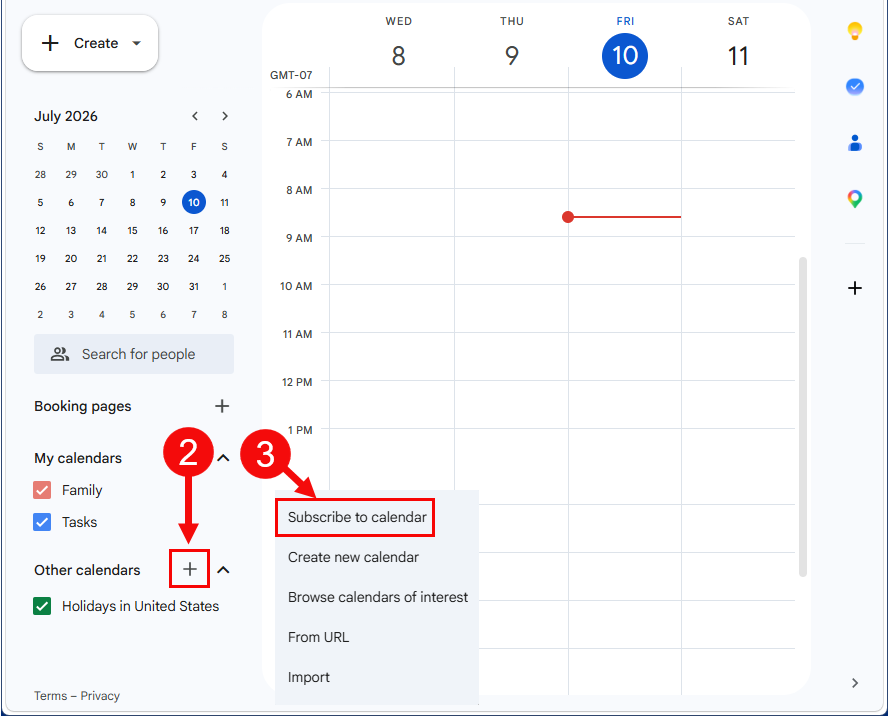
Select "Subscribe to calendar," then "From URL"
From the dropdown menu, choose "Subscribe to calendar."
Select "From URL" on the left sidebar menu
In the settings sidebar on the left, click "From URL."
Paste your link into "URL of calendar"
Paste the link you copied in Step 1 into the field.
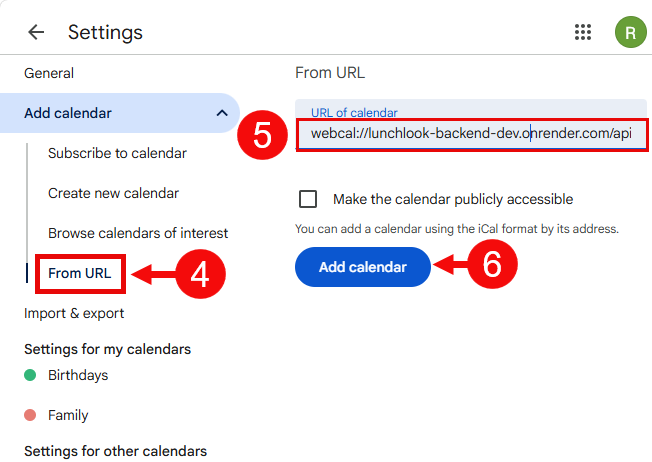
Select "Add Calendar"
Tap Add Calendar to confirm. Your lunch calendar will now stay updated automatically.
Once added, Google Calendar may say your subscription was successful right away, but the actual lunch events can take a few hours to appear — that's normal, no action needed.
Having trouble adding the calendar?
Copy the prompt below and paste it into your favorite AI app (ChatGPT, Claude, Gemini, or any other). It will walk you through the exact steps for your specific device.
Need a person? Email support@lunchlook.com