Add LunchLook to Outlook
🛑 OUTLOOK — DO THIS IN A WEB BROWSER
The Outlook phone app can’t subscribe to a new calendar, so do these steps once in a web browser; it then syncs to Outlook on all your devices. 📱 On a phone you’ll also need to switch your browser to the desktop site — the mobile view hides the option you need (exact taps in Step 2).
Copy your LunchLook calendar link
Use the “Copy link” button on your confirmation page, or find it in your welcome email.
Open Outlook in a web browser
Tap the button below to open Outlook Calendar in a browser (the Outlook phone app can’t subscribe — once it’s added in the browser it syncs everywhere). 📱 IMPORTANT on a phone: after it loads, switch on the DESKTOP SITE, or Outlook’s mobile view hides the “Add calendar” option. In Safari tap “aA” (top-left) → “Request Desktop Website.” In Chrome tap ⋮ → check “Desktop site.” On a computer, skip this.
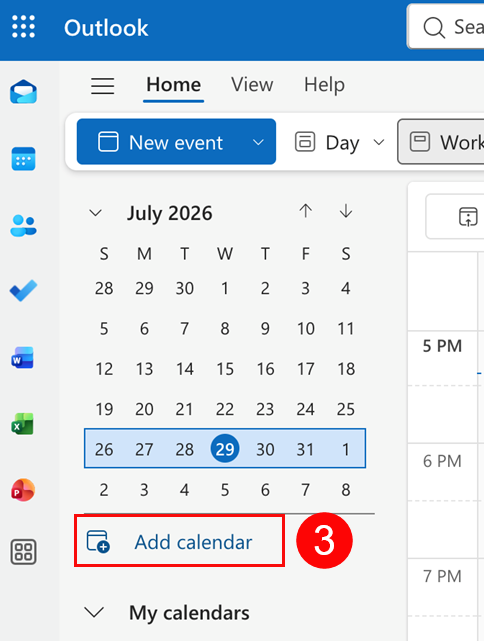
In the left sidebar, select "Add calendar"
Near the bottom of the left sidebar, click "Add calendar."
Choose "Subscribe from web"
In the "Add calendar" window, pick "Subscribe from web."
Paste your link into the box
Paste the link you copied in Step 1 into the field.
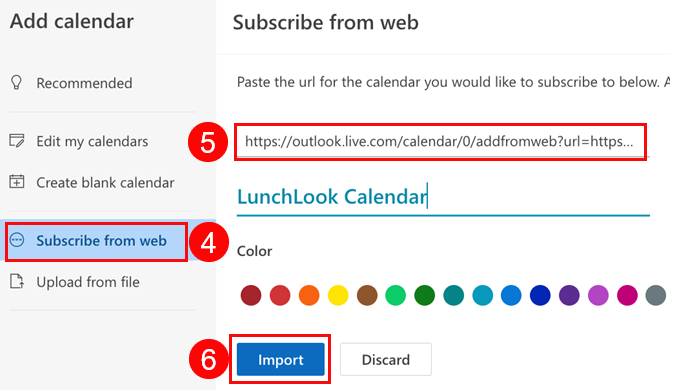
Name it "LunchLook Calendar" and click "Import"
Type "LunchLook Calendar" as the name, pick a color if you like, then click "Import." Your lunch calendar will now stay updated automatically.
Once added, Outlook may confirm the subscription right away, but the actual lunch events can take a little while to appear — that's normal, no action needed.
Having trouble adding the calendar?
Copy the prompt below and paste it into your favorite AI app (ChatGPT, Claude, Gemini, or any other). It will walk you through the exact steps for your specific device.
Need a person? Email support@lunchlook.com